Home
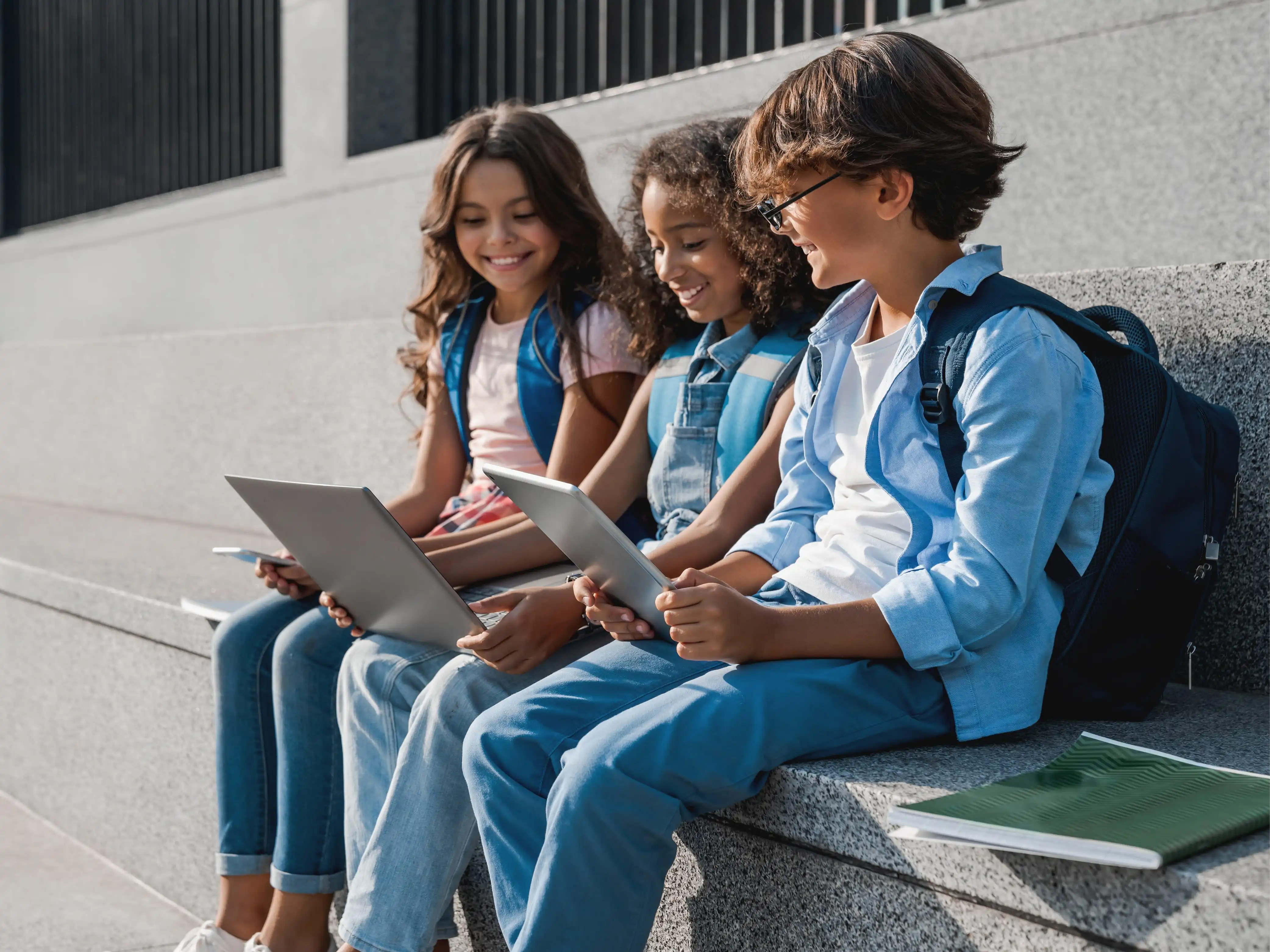
Two young students discuss an assignment in front of a laptop

Students

More fun in learning

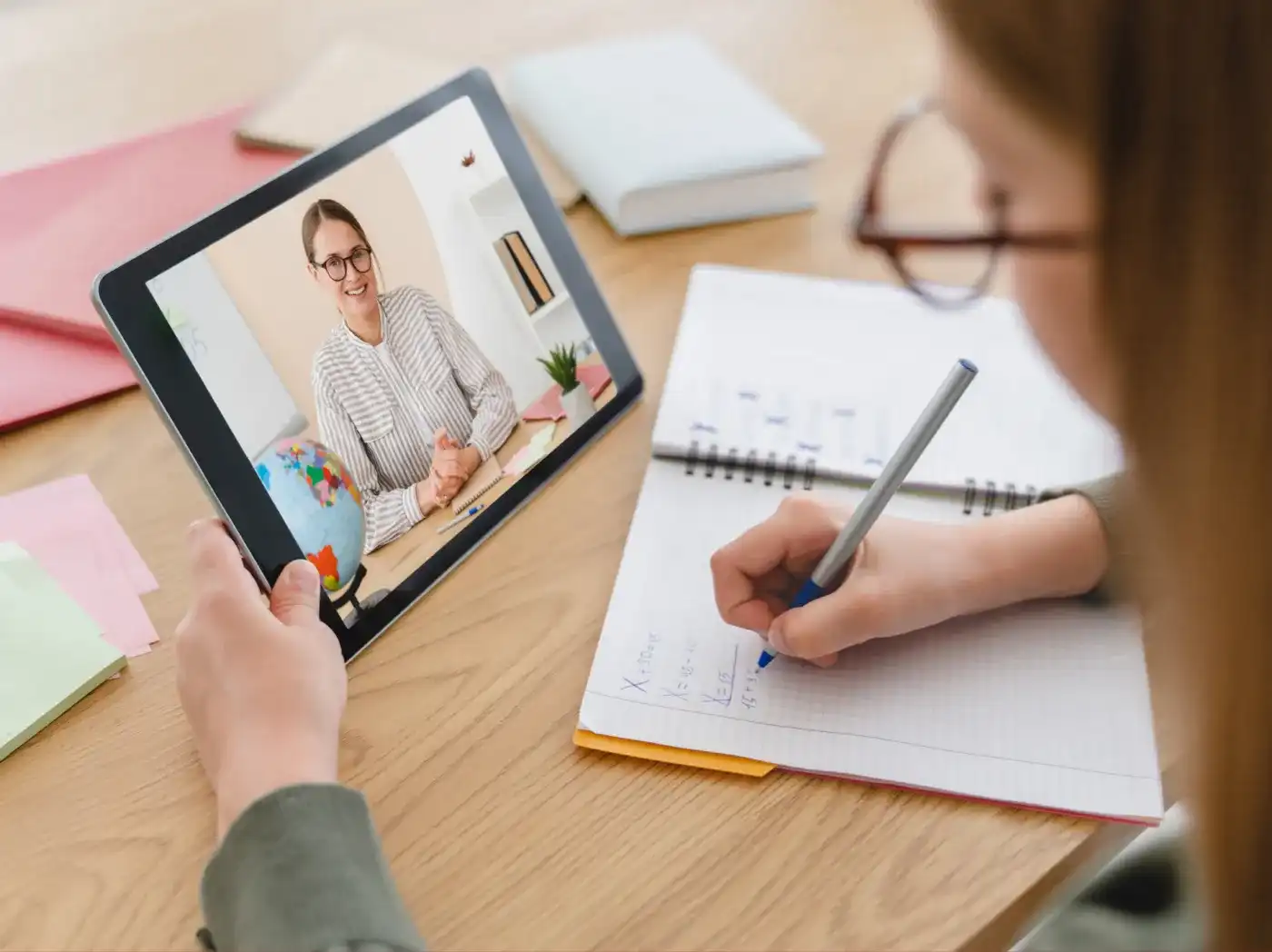
A young girl holds a tablet in her left hand, displaying a woman at a desk with study materials, while writing mathematical formulas in a notebook with a pen in her right hand

Securely managing iPads and tablets for students

Students work with iPads, tablets and laptops that are provided by the school or funded by their parents. They sign in during class in the morning, open the apps they need for the lesson and save their work. With parent-funded devices, the same tablet also serves as a school device during the day and as a private device after lessons. Alongside these are devices from tablet cases and computer rooms that another class uses in the afternoon.

Device management for students

Anyone working with a tablet from a tablet case rarely gets the same device twice and still has to find yesterday's file. Anyone bringing their own device wants to use it as before once the last lesson is over. And in both cases, what a twelve-year-old, for example, can find and research in the browser should suit their age.

A mobile device management system solves this via the sign-in rather than via the device. The student signs in with their school account, and that determines which apps they see, where their files are stored and which content is blocked. The device itself is interchangeable.

Digital device management for students

Relution MDM sets up the school devices before they are issued. The learning apps are installed, access to the school network is in place, and age restrictions for apps and content are set. On iPads, Relution Decon adds an AI-based content filter that the school configures by category and age rating. Students only have to sign in on the device with their school account. They do not need their own Apple, Google or Microsoft account for this. Sign-in runs via the account that the school maintains in its directory service anyway.

What does Relution offer students?

Relution covers the three areas that shape everyday school life on the device: working during the lesson, access to your own files from changing devices, and the separation of school and free time.

Relution in everyday school life

  • The lesson on the device

    At the start of the lesson, the teacher starts a lesson profile for the class. It defines what is available in that lesson: individual apps from the Relution App Store, system apps and web links for a research phase. For a class test there is the examination profile type, which shows students the examination mode on the device. The student does not have to configure anything:

    • Lesson profiles via the Relution Teacher App, started for the class present
    • Apple Classroom or Samsung Classroom Management for locking individual devices and viewing screens
    • Release of individual apps, system apps and web links for the current task
  • Your own files on changing devices

    A tablet case travels through several classes, a loan device goes back at the end of the school year. Even so, students must always have access to their data. If the IT administration has set up file shares, the work results are stored not on the device but on the school server:

    • Personal shares via SMB and WebDAV, integrated via the Relution Files app
    • Relution Camera (integrated in the Relution Files app) saves photos and videos directly to this share
    • After signing out, no data is left behind for the next user
  • After lessons

    On parent-funded and private devices, the school part ends with the school day. What the student installs, photographs or writes in the afternoon stays in their private area. What the separation looks like:

    • School and private context on the same device, switchable
    • The school does not record any data from the private area
    • If the school wipes the school area, private content is retained
    • Via the Relution Parent App, parents decide which installed apps their child may use outside of school hours

Devices that organize the school day

One tablet is handed out in a class set in the morning, another sits in a student's backpack all day. Central device management is the basis for the school's rules applying in both cases and for every student finding their own content again. Relution MDM offers the right solutions for this.

Frequently asked questions about iPads and tablets for students

No. Sign-in runs via the school account, which is stored in the school's directory service. On iPads in multi-user operation, this also works without Managed Apple IDs thanks to Relution Shared Device mode, so no Apple ID has to be created per student. No personal account is needed for installing apps either, because the licenses are held by the school.

Each student signs in with their own school account and works with the apps and content intended for their year group. After signing out, the temporary user data is deleted, so the next user has no access to the previous user's data. The procedure is suitable for tablet cases and loan devices that move between classes and year groups.

The school defines which categories of websites and apps are blocked, among other things via age ratings and the lists of the Bundesprüfstelle. On iPads, the Relution Decon content filter handles this by checking the device's requests before a page is loaded. Whether filtering also applies outside the school network is decided by the school or the school board.

The applications that the school has approved can be installed from the Relution App Store. Anything beyond that goes via a teacher, who submits an app request. The IT administration reviews this request before the app appears in the catalog. On private devices, this affects only the school area.

On a private or parent-funded device, the school area is separated from the private one. The school manages only the school part and records neither private apps nor personal files or messages. On a device owned entirely by the school, the school's rules apply throughout, because the device belongs to it.

Via the Relution Parent App, parents can see the apps installed on the device and block or unblock individual ones. This does not give them access to files, messages or the location. The prerequisite is that the school's IT administration has approved the pairing between the parent device and the student device.

If the school has set up file shares, the files are stored on the school server and not on the device. When a loan device is returned or reset, they are therefore retained. What happens to the share itself when a student leaves the school is decided by the school or the school board.

The IT administration locks the device remotely or wipes the data on it. On school devices in full management, Lost Mode additionally shows a message on the lock screen and reports the location. On a private device, the wipe affects only the school area, and private content is retained.