Relution Server 26.1
New Configuration for Software Update Settings
Relution version 26.1 introduces a new software update settings policy for the Apple platforms iOS, macOS, visionOS, and tvOS. The goal is to accommodate Apple’s changes to update behavior. These settings are intended to supplement the existing configurations and completely replace some of the options that are already outdated.

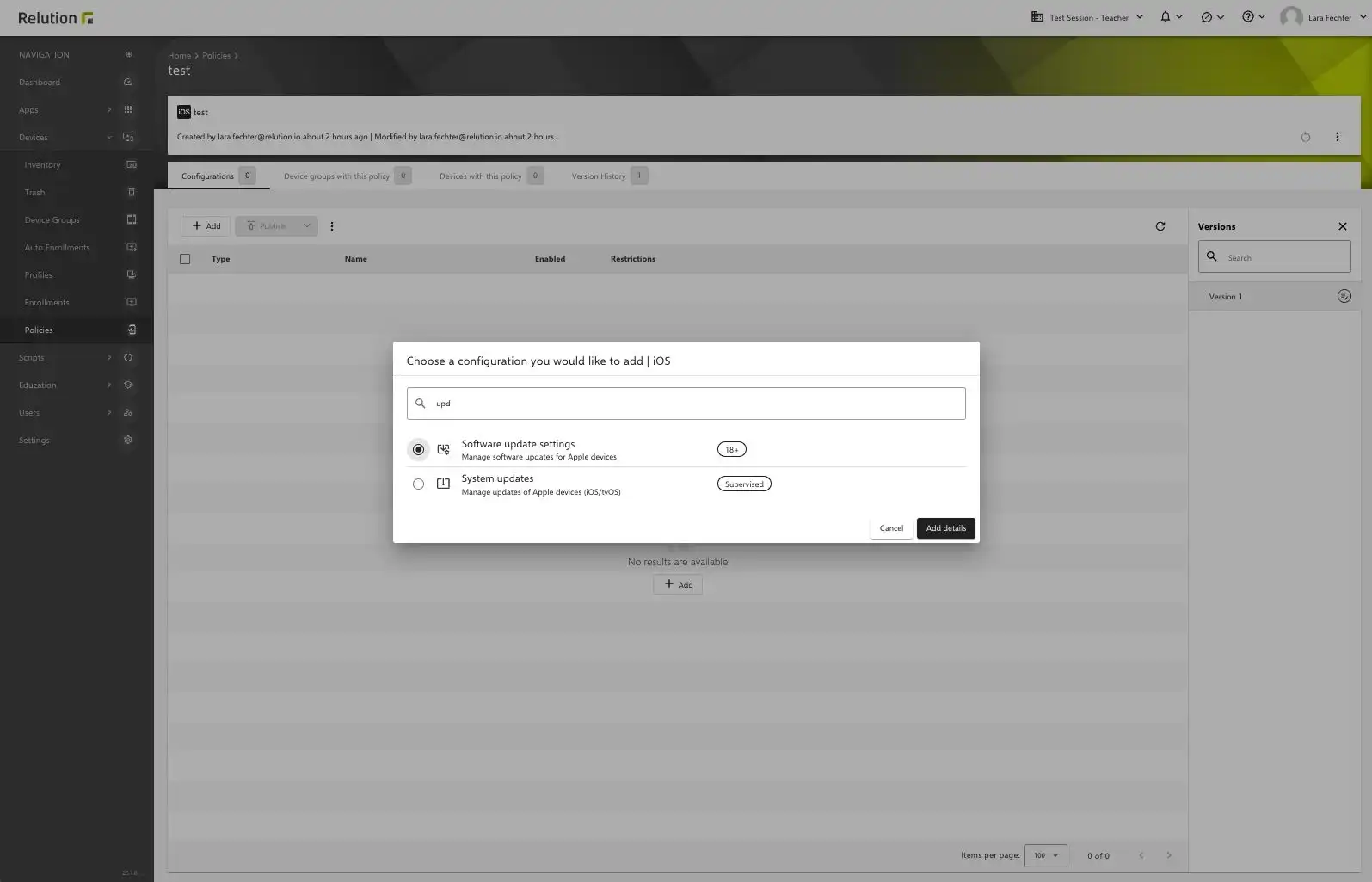
Depending on the operating system, only the relevant options are displayed, allowing administrators to configure exactly the settings that are available for the specific device. Outdated settings are marked as such in the System Update configurations. Apple has already announced that these will no longer be supported in a future OS version scheduled for release in 2026.

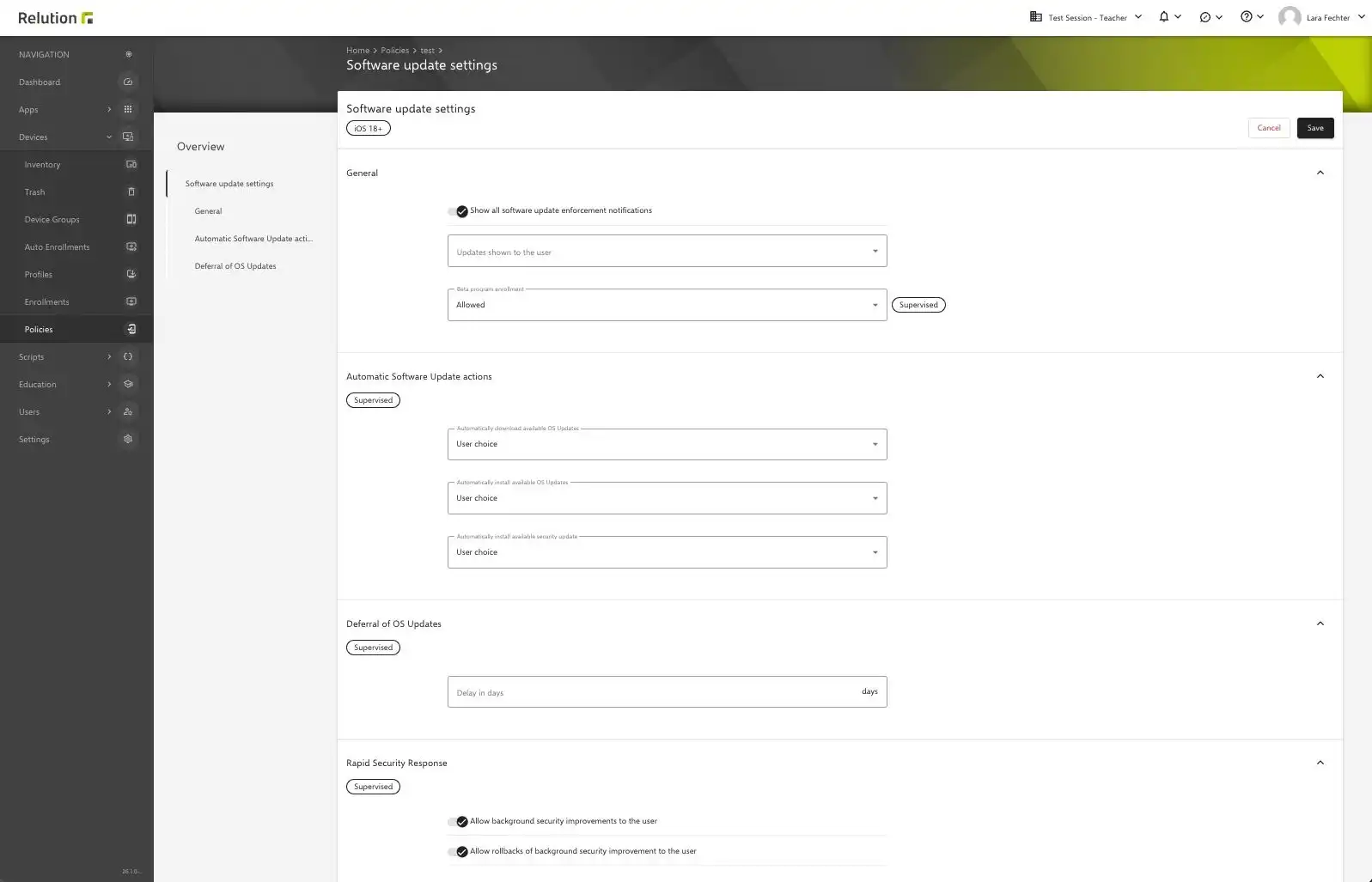
Note on System Update Configuration The new Software Update Settings should also be configured for devices running iOS 18 or later, or macOS 15 or later.
Please note: The new configuration is intended exclusively for software update settings. Regular system updates will continue to be available as usual and are responsible for actually updating the devices.
New Policy: Math Settings
Effective immediately, calculator functions on devices can be enabled and managed via the new “Math Settings” policy. This allows for targeted control and customization of usage on devices, particularly in educational settings. The policy is applicable starting with OS 26+.
New Policy: Audio Accessories Settings
This new policy allows you to control the pairing of Apple audio accessories: allow, completely block, or enable for a limited time. Due to Apple specifications, time windows can only be set in full hours. The policy is applicable starting with OS 26+.
Central TeamViewer Configuration at the Global or Meta-Organization Level
Previously, TeamViewer could be configured within each individual sub-organization. With version 26.1, it is now possible to set up a TeamViewer account centrally at the global or meta-organization level. This eliminates the need for separate configuration in each individual sub-organization.
Once a TeamViewer account is stored at the global/meta level, this configuration automatically applies to newly created sub-organizations as well, enabling cross-organizational use of the same TeamViewer settings.
The following rules apply: A global configuration is only possible if no TeamViewer account has been set up within an organization. Conversely, no configuration can be made at the organizational level once a global TeamViewer configuration is already active.
If TeamViewer has already been set up in a sub-organization, this connection must first be removed in the settings of the respective organization before a global account can be configured. This prevents multiple TeamViewer accounts from being used simultaneously.

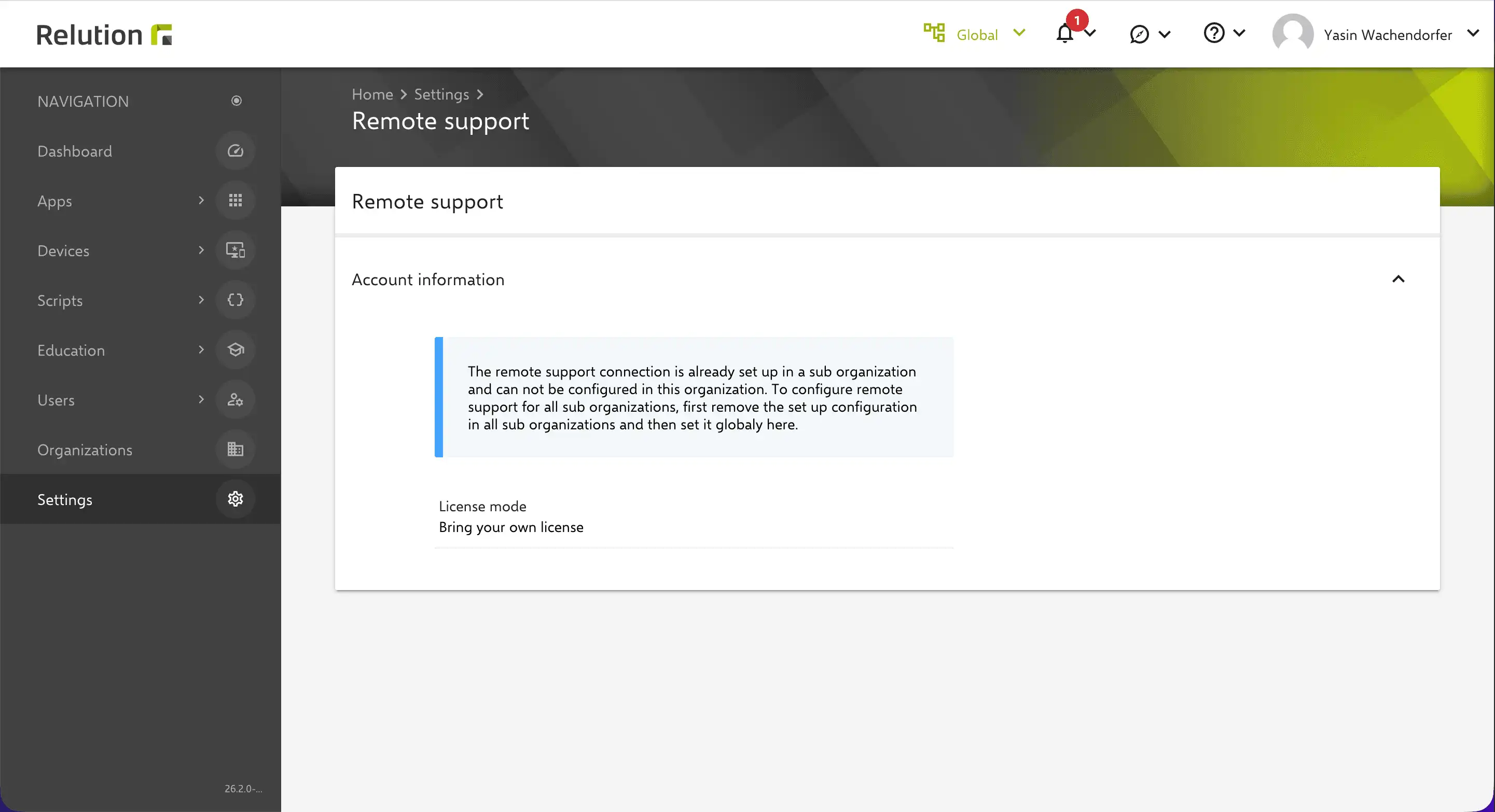
Please also note the respective licensing model: If a TeamViewer license is linked to the global organization, it applies across all servers and is billed per device. With the Bring Your Own License (BYOL) model, however, there are no changes.
This feature simplifies the centralized management of TeamViewer access, reduces configuration effort, and ensures consistent remote support settings across all organizations.
Auto-Enrollments: Bulk Action for Assigning Device Groups
With Relution 26.1, administrators can assign multiple devices to a device group simultaneously by specifying in Auto-Enrollment which static groups a device automatically receives. Additionally, it is now possible to remove device groups for multiple Auto-Enrollments. This functionality is also available in the device inventory.
However, we generally recommend using dynamic groups, as these are managed automatically and do not require manual maintenance.
Policy Test Workflow
This version introduces the policy test workflow. New or updated policy versions can first be tested on defined test device groups without being published directly to all devices.
This allows changes to be thoroughly tested before they are rolled out to production. Even versions that have already been released or older versions can be retested.
Improved Overview in the Version History
The version history sidebar has been expanded and now offers a clear overview of policy versions. At a glance, administrators can see how many devices are assigned to a version and what status they have.
The improved overview facilitates the analysis and control of test and production versions and ensures better traceability of policy distribution.
Behavior During Certificate Renewal
Starting immediately, administrators can specify how to handle old certificates after an automatic renewal. Previously, they were automatically deleted and, depending on CRL or OCSP queries, were no longer valid.
With the new feature, you can configure whether old certificates remain valid until their regular expiration date or are immediately revoked and marked as replaced. By default, old certificates remain valid for newly created templates; for existing templates, replaced certificates become invalid as before. However, this status can now be tracked via the certificate list.
Organization display name on the lock screen
With Android Enterprise, you can define a display name for the organization that is assigned to a device. Using the “Restrictions” → “Device Restrictions” policy, you can now control whether this organization name is displayed or hidden on the lock screen of company-owned devices.
If the display is enabled, the message “This device belongs to …” appears with the configured name. This makes ownership transparent—for example, in schools and businesses—and clearly identifies devices.
Placeholders in user notifications
Placeholders can now be used in user notifications for Android Enterprise. This allows messages to dynamically include device or user information and be customized for end users.
Centralized Management of the CTOUCH RIVA D2 via Relution
The CTOUCH RIVA D2 interactive whiteboard can be easily managed via the Relution platform. The device runs on Android Classic, allowing it to be seamlessly integrated into existing school IT infrastructures—centralized, simple, and efficient.
The changelog for the release can be found here.
For reasons of better readability, the masculine form is used on this page when referring to persons and personal nouns. In accordance with the principle of equal treatment, the corresponding terms apply to all genders. The abbreviated form is used for editorial reasons only and does not imply any value judgment.